最近来面试职位的候选者大多用了playwright来做web自动化,而我们这些老家伙则习惯了用selenium做。自己去尝试了一下playwright的一些特性,与selenium做了对比,看看有没有能参考能吸取的特点。
主要从基础信息和编码来对比。
基础信息包含组织、编程语言、浏览器、系统、平台、链接协议、并行方案。
编码包含环境、编写、运行、无头模式、自动等待、异步、鼠标键盘事件、iframe、shadow dom、mobile emulation、 mcp。
文章较长,有些后面还要再补充一点。
先说结论,若是小团队或者新项目,或者公司内要做一个新测试框架,playwright是非常值得推荐和使用的,简便、快捷、灵活,额外的封装也带来了便利。不过有些特点不一定适合已经有很多脚本的老项目、已拥有内部测试框架并且考虑了全平台的应用的、部门内欠缺基础设施的情况。细节列在下面。
一. 基础信息
-
组织
|
|
Playwright |
Selenium |
|
Organization |
Microsoft |
Thoughtworks |
|
Date |
2020 |
2004 |
-
编程语言
|
|
Playwright |
Selenium |
|
Python |
√ |
√ |
|
Java |
√ |
√ |
|
C# |
√ |
√ |
|
JavaScript |
√ |
√ |
|
TypeScript |
√ |
X |
|
Ruby |
X |
√ |
|
Kotlin |
X |
√ |
|
PHP |
X |
√ |
|
Perl |
X |
√ |
playwright支持几种主流语言,没有selenium支持的多,不过这个无关紧要。
看公司吧,我就知道有公司的老项目是用不了的,因为用了比较老的语言在现在不流行,不支持很正常。
比如ruby,playwright官方不支持,不过有个社区版,值不值得用就看自己衡量了。
-
浏览器
|
|
Playwright |
Selenium |
|
Chrome |
√ |
√ |
|
Firefox |
√ |
√ |
|
Edge |
√ |
√ |
|
Safari |
√ |
√ |
|
IE |
X |
√ |
|
Headless |
√ |
√ |
列了几种相对主流的浏览器,也没什么问题,虽然selenium还支持其他的浏览器,但现在基本都是跑chrome。
* 不过这里有个区别是selenium需要下载对应浏览器和版本的driver,而playwright则是直接下载浏览器的内核来运行,比如playwright支持的chrome和edge其实都是基于chromium的,老的edge它是不支持的,对于Safari也是同理,它是跑的webkit。https://playwright.dev/python/docs/browsers
-
系统
|
|
Playwright |
Selenium |
|
Windows |
√ |
√ |
|
Linux |
√ |
√ |
|
Mac |
√ |
√ |
这个没啥说的,都支持,尤其对于跑docker的完全不用担心。
-
平台
|
|
Playwright |
Selenium |
|
Web |
√ |
√ |
|
Mobile Emulation |
√ |
√ |
|
Mobile |
X |
webdriver wire protocol |
playwright是做web的,也支持用浏览器模拟手机设备,当然不支持真机,这个selenium一样。
* 不过对于有的测试框架比如我现在做的这个,支持web、mobile、桌面端应用,而mobile是用了appium,appium又是基于selenium webdriver的,一旦用playwright来替代selenium,则需要修改较多的地方。若只是web,或者mobile用了其他的,则可以考虑替代selenium。
-
链接协议
|
|
Playwright |
Selenium |
|
Protocol |
WebSocket |
Http |
* 看文档里写,Playwright用了websocket,长链接,双向通信,这个也是为什么比selenium快的原因之一,能比较好适应浏览器和元素的变化,提高一点稳定性。
-
并行方案
|
|
Playwright |
Selenium |
|
Parallel |
Own test runner |
Selenium Grid |
* selenium grid算是一大利器了。playwright没有对标的东西https://github.com/microsoft/playwright/issues/22961,是依赖不同语言的test runner来达到本地并行的目的https://playwright.dev/docs/test-parallel ,另外playwright的文档里提到会支持连接使用selenium grid,不过目前还是实验性质的https://playwright.dev/docs/selenium-grid。
二. 编码
-
环境
以python为例,可以直接运行pip安装playwright或者pytest-playwright,推荐后者,一步到位。
浏览器的支持就通过install命令,上面提到的,不像selenium那样下载浏览器对应版本的driver并配置环境变量。从文档看,直接跑browser build这是另一个比selenium快的原因。
pip install pytest-playwright

playwright install  #装所有浏览器build
playwright install chromium  #只装chromium
日志可以看到下载到统一的目录中
(venv) admin$ playwright install chromium
Downloading Chromium 141.0.7390.37 (playwright build v1194) from https://cdn.playwright.dev/dbazure/download/playwright/builds/chromium/1194/chromium-mac-arm64.zip
129.7 MiB [====================] 100% 0.0s
Chromium 141.0.7390.37 (playwright build v1194) downloaded to /Users/admin/Library/Caches/ms-playwright/chromium-1194
Downloading Chromium Headless Shell 141.0.7390.37 (playwright build v1194) from https://cdn.playwright.dev/dbazure/download/playwright/builds/chromium/1194/chromium-headless-shell-mac-arm64.zip
81.7 MiB [====================] 100% 0.0s
Chromium Headless Shell 141.0.7390.37 (playwright build v1194) downloaded to /Users/admin/Library/Caches/ms-playwright/chromium_headless_shell-1194
-
编写
playwright的很多方法是有额外的封装的,这也带来了调用和使用的便利。
行为操作比如click、check等和selenium是差不多的,基础行为都会有,有些关键词命名不同,比如selenium有send_keys,playwright可以用fill,selenium用action_chains来move_to_element、click_and_hod,playwright直接调用hover、press;类似的还有不少。
元素定位的方法则区别较大:https://playwright.dev/python/docs/locators
selenium可以通过id、name、class_name、css、xpath等定位,调用方法比如是driver.find_element_by_xpath、或用driver.find_element("id", "my-id")这样的。
playwright的能支持这些定位,但方法则不同,从文档中看到有这些
•	page.get_by_role() to locate by explicit and implicit accessibility attributes.
•	page.get_by_text() to locate by text content.
•	page.get_by_label() to locate a form control by associated label's text.
•	page.get_by_placeholder() to locate an input by placeholder.
•	page.get_by_alt_text() to locate an element, usually image, by its text alternative.
•	page.get_by_title() to locate an element by its title attribute.
•	page.get_by_test_id() to locate an element based on its data-testid attribute (other attributes can be configured).
•	page.locator(),  support css and xpath, no need to give the prefix, for example:
            page.locator("css=button").click()
            page.locator("xpath=//button").click()
            page.locator("button").click()
            page.locator("//button").click()
            page.locator('#my-id')
            page.locator('.my-class')
page.locator看起来是相对通用一些的,但是支持的是css和xpath,虽然也可以将id信息带入。
这些方法调用可以偏向于描述关键词信息来获取元素,不过page.get_by_role这样的在我使用中,我有些困惑,比如page.get_by_role("link", name="Get started"),我看到role为link的页面上tag是一个a,role是button则tag是button,那么有些按钮是a标签咋办,看起来应该有额外逻辑来处理这些分类,但分类怎么分的不太清楚,跳转到这个方法里去看过还有挺多role类型。之后有更多信息再来更新这里。
一个样例test方法倒是很好理解,检查点出了可以使用assert外,还可以使用很多封装过的expect的方法,去检查文本、值、状态等。
import re
from playwright.sync_api import Page, expect

def test_has_title(page: Page):
    page.goto("https://playwright.dev/")
    # Expect a title "to contain" a substring.
    expect(page).to_have_title(re.compile("Playwright"))

def test_get_started_link(page: Page):
    page.goto("https://playwright.dev/")
    # Create a locator.
    get_started = page.get_by_role("link", name="Get started")
    # Click it.
    get_started.click()
    # Expects page to have a heading with the name of Installation.
    expect(page.get_by_role("heading", name="Installation")).to_be_visible()
类似的检查方法很多:https://playwright.dev/python/docs/test-assertions,比如:
•	expect(locator).to_be_visible()
•	expect(locator).to_contain_text()
•	expect(locator).to_have_attribute()
•	expect(locator).to_have_value()
•	…
-
运行
运行可以像pytest那样的方式,不过多了些参数,也可以自己定义从主文件启动,在代码中也可以指定启动浏览器和一系列的逻辑,比如playwright.chromium.launch(headless=False),自由封装组合。
如果用命令行,默认的是启动headless,默认浏览器是chromium,若需要看到页面,则要指定--headed,可以指定一个或多个浏览器,算是简化了跑兼容性。
•	pytest test_sample.py --headed --browser webkit
•	pytest --headed --browser webkit --browser chromium
可以并行跑,这就是上面提到的,是依赖于test runner,比如python是用的pytest-xdist,不能达到selenium grid的效果。
• pytest --numprocesses 2 –headed
还可以指定调试,会启动一个额外的小窗口,能协助校验元素和查看每步操作,类似pycharm debug加上dev tool;
• PWDEBUG=1 pytest -s test_sample.py
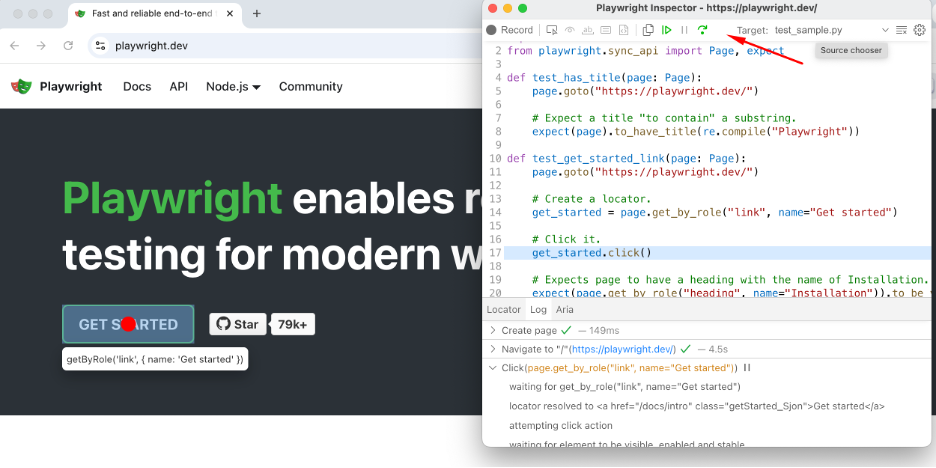
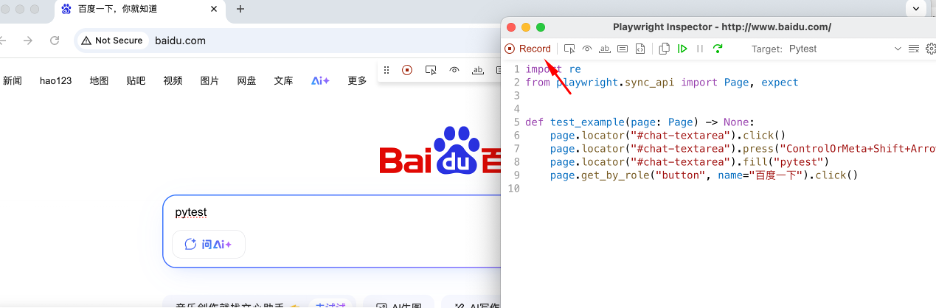
可以录制,想起来很久以前selenium支持录制的时候,但这个功能用得不多,或者不熟悉的时候看看生成的方法调用是什么。
-
无头模式
两者都支持无头模式。selenium是通过浏览器的options指定chrome_options.add_argument("--headless"),playwright则比较简单,默认headless。
据说用playwright无头模式做爬虫的不少啊。
-
自动等待
这是playwright很不错的一个特点了,一般来说不需要写等待语句,它会自动等待,也是提高了脚本稳定性。
它在行为操作时自动做了一系列处理。比如locator.click时,它会明确一下条件:
locator resolves to exactly one element
element is Visible
element is Stable, as in not animating or completed animation
element Receives Events, as in not obscured by other
elements element is Enabled
当selenium还在用显式或隐式等待时,playwright这个特点真的很不错。
另外也提供了一些用于等待条件的方法,比如wait_for_selector:https://playwright.dev/python/docs/api/class-elementhandle#element-handle-wait-for-selector, 这个页面里搜wait_for能看到好些支持的方法。
-
异步
异步也算是playwright的一大特点了,支持异步编程,使用到async和await,还没多少尝试,之后更新下这部分,但看了些文章后在想,是不是有些不明确触发情况和出现的时间的操作,用playwright就能做到了,比如有些db和email的检查,什么时候生成什么时候收到不能明确,之前要么不做这些,要么是轮询,反正会卡着时间就会浪费。
import asyncio
from playwright.async_api import async_playwright
async def main():
async with async_playwright() as p:
    browser = await p.chromium.launch(headless=False)
    page = await browser.new_page()
    await page.goto('https://www.baidu.com')
    await page.fill('input[name="wd"]', 'Python Playwright')
    await page.press('input[name="wd"]', 'Enter')
    await page.wait_for_selector('#content_left')
    await page.screenshot(path='screenshot.png')
    await browser.close()
asyncio.run(main())
-
鼠标键盘事件
selenium还需要引入action chains和Keys。
而playwright做了额外的封装,可以方便的使用键盘和鼠标时间,不需要额外import。
https://playwright.dev/python/docs/input
比如这样的写:
•	page.get_by_text("Item").click(modifiers=["Shift"])  # shift + click
•	page.get_by_text("Item").click(button="right") # right click
•	page.get_by_text("Submit").press("Enter") # press enter
•	page.get_by_role("textbox").press("Control+ArrowRight") # ctrl + right
-
iframe
两者都支持iframe,不过selenium的方式是通过switch_to切换到iframe然后还需要切换回来,而playwright则是可以定义一个locator代表iframe,iframe中的元素就在这个locator下定义,其他元素就按常规定义,不需要切换。
比如这个test方法就是个例子
def test_iframe(page: Page):
    page.goto("https://www.w3schools.com/html/html_iframe.asp")
    # Locate the iframe by its URL
    frame_locator = page.frame_locator("iframe[title='W3Schools HTML Tutorial']")
    # Interact with elements inside the iframe
    heading = frame_locator.locator("#subtopnav")
    expect(heading).to_have_text(re.compile(r".*NUMPY.*"))

    # Click on a button out of the iframe
    page.get_by_role("button", name="Sign in").click()
    page.wait_for_selector("#tnb-login-dropdown-email", state="visible")
    page.locator("#tnb-login-dropdown-email").wait_for(state="visible")
-
shadow dom
两者都支持shadow dom,selenium的方式是先定义一个shadow element,获取shadow_root,然后再往下找。
playwright也可以这样。但是playwright可以省略定义shadow element的步骤,也即是说直接定义一个元素,哪怕这个元素是在shadow dom里,它一样能操作和获取。
比如这个test方法就是个例子
def test_shadow_dom(page: Page):
    page.goto("https://selectorshub.com/xpath-practice-page/")

    # Locate the shadow host
    shadow_host = page.locator("#userName")

    # Access elements inside the shadow DOM
    shadow_text_field = shadow_host.locator("input[title='user name field']")
    # if not define shadow host, can directly locate the shadow element
    shadow_text_field_direct = page.locator("input[title='user name field']")
    expect(shadow_text_field).to_be_visible()
    shadow_text_field.fill("Trump")
    expect(shadow_text_field).to_have_value("Trump")
    expect(shadow_text_field_direct).to_have_value("Trump")
-
mobile emulation
两者都支持mobile emulation,当然这不是真机,仍然是web。
selenium是通过options,通过指定mobileEmulation使用指定的user agent等信息,来达到模拟设备上显示的效果。比如
...
op = Options()
op.add_experimental_option("excludeSwitches", ['enable-automation'])
op.add_experimental_option("mobileEmulation", mobile_emulation)
...
playwright预置了很多设备的信息,甚至于可以直接指定机型来载入对应设备的信息达到模拟效果,简单一些。https://playwright.dev/python/docs/emulation
如果是命令行
pytest test_sample.py --browser webkit --device="iPhone 13" --headed
如果是代码里
from playwright.sync_api import sync_playwright, Playwright

def run(playwright: Playwright):
    iphone_13 = playwright.devices['iPhone 13']
    browser = playwright.webkit.launch(headless=False)
    context = browser.new_context(
        **iphone_13,
    )
with sync_playwright() as playwright:
run(playwright)
-
mcp
至于mcp,之前简单介绍过:自定义MCP Server并集成到Copilot
playwright有微软官方提供的mcp,虽然是nodejs,但是python也能用,没有太细究原因,只是简单尝试了下。
playwright的mcp server已经是23.6k的star了,selenium毕竟比较久远一些,现在只有少许几个个人项目在做mcp,最多的200多个star。
在mcp.json中加入如下内容:
{
  "servers": {
    "playwright": {
      "command": "npx",
      "args": [
        "@playwright/mcp@latest"
      ]
    }
  }
}
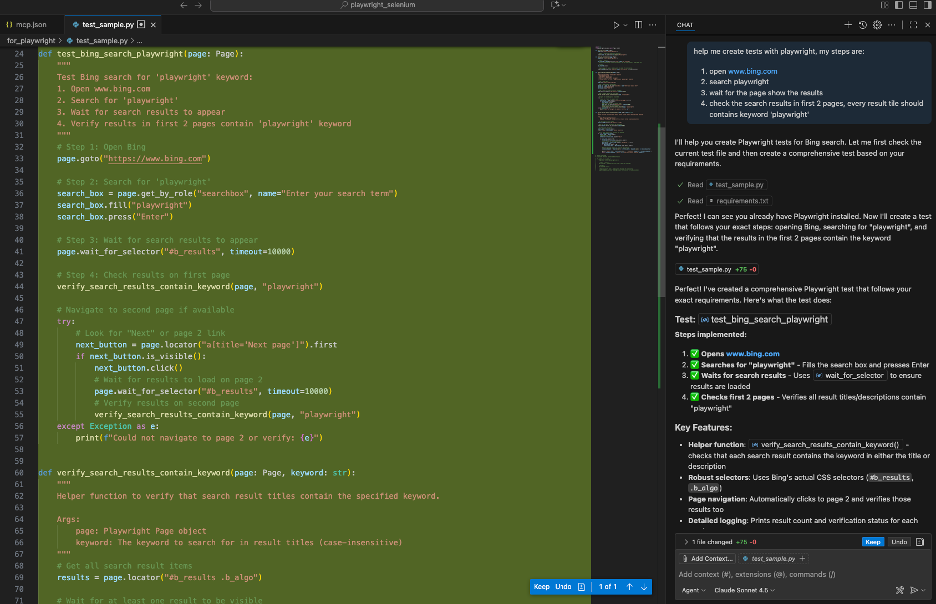
vscode中启动后,在copilot中输入一点简单需求,比如是
help me create tests with playwright, my steps are:

open www.bing.com
search playwright
wait for the page show the results
check the search results in first 2 pages, every result tile should contains keyword 'playwright'
然后直接就给我生成了对应的pytest的测试方法,虽然元素定位的值要改一下,但是看了下基本的逻辑步骤倒是没错。
文章评论 (0)